Open Profile & settings
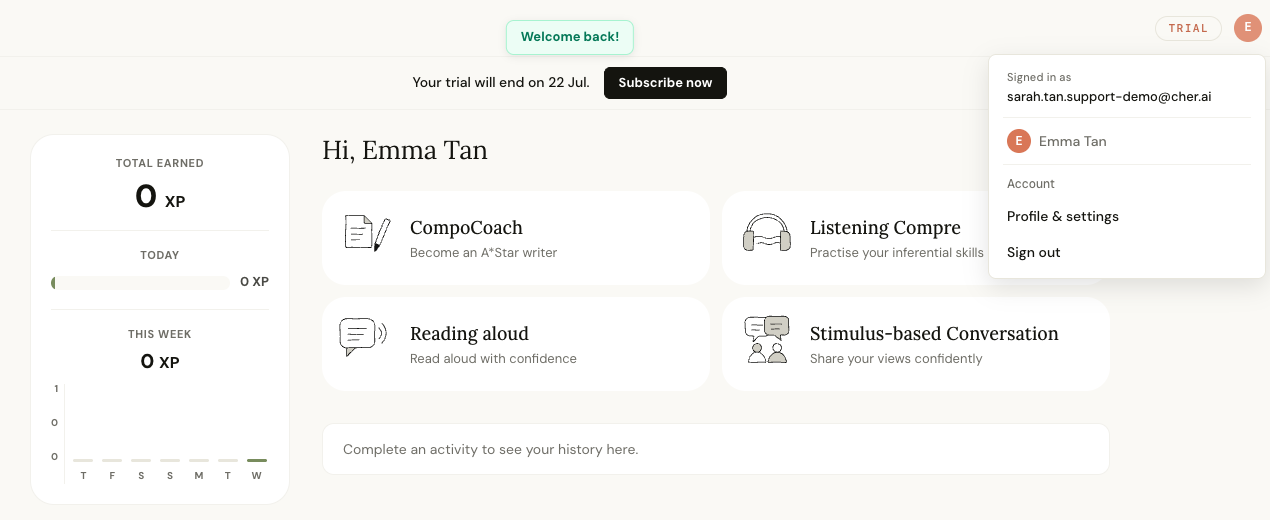
After signing in, click the profile circle at the top right of the Learn page. Choose Profile & settings from the menu.
If you are cancelling a free trial
Use this path if your learner is still on a free trial. Cancelling before the trial end date prevents the plan from renewing into a paid subscription.
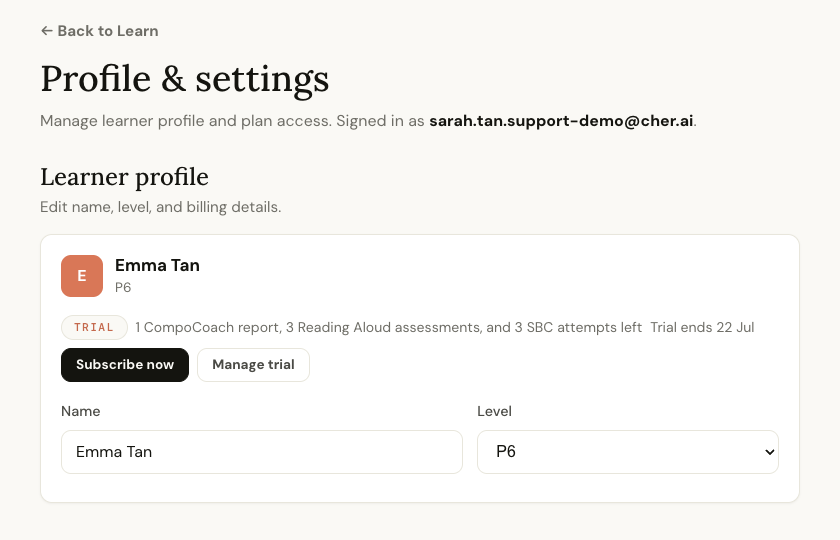
Click Manage trial
On Profile & settings, find the learner whose trial you want to cancel. Click Manage trial.
Select the active trial in Stripe
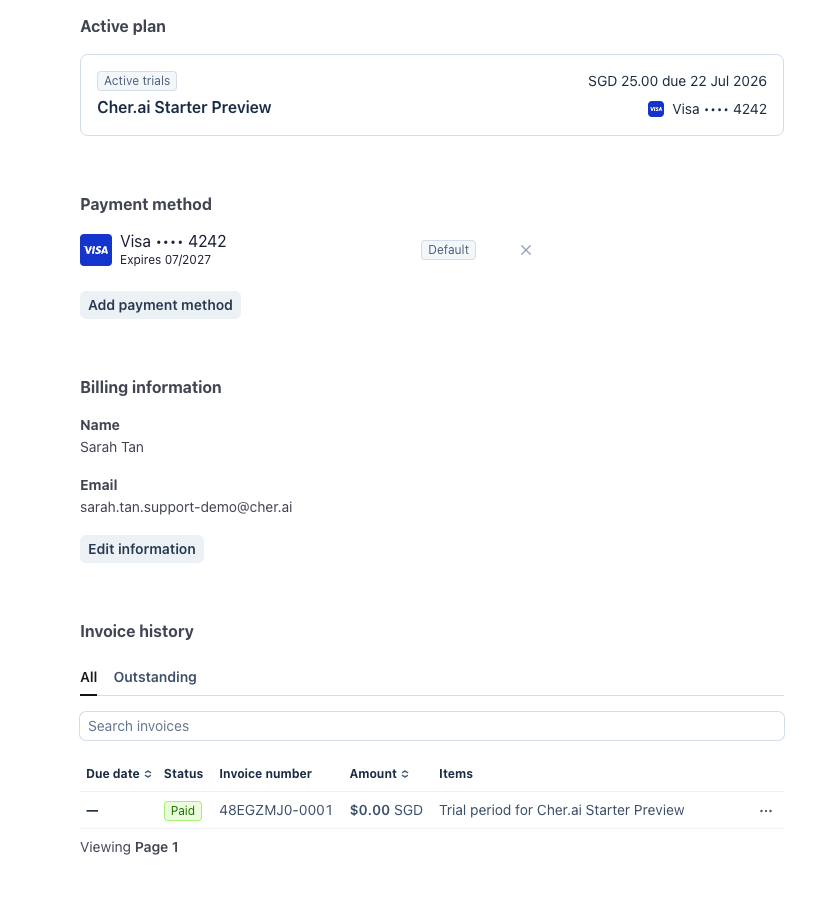
Stripe opens in a new billing portal page. Under Active plan, click the Cher.ai Starter Preview card. Stripe may label the card as Active trials.
Choose Cancel plan
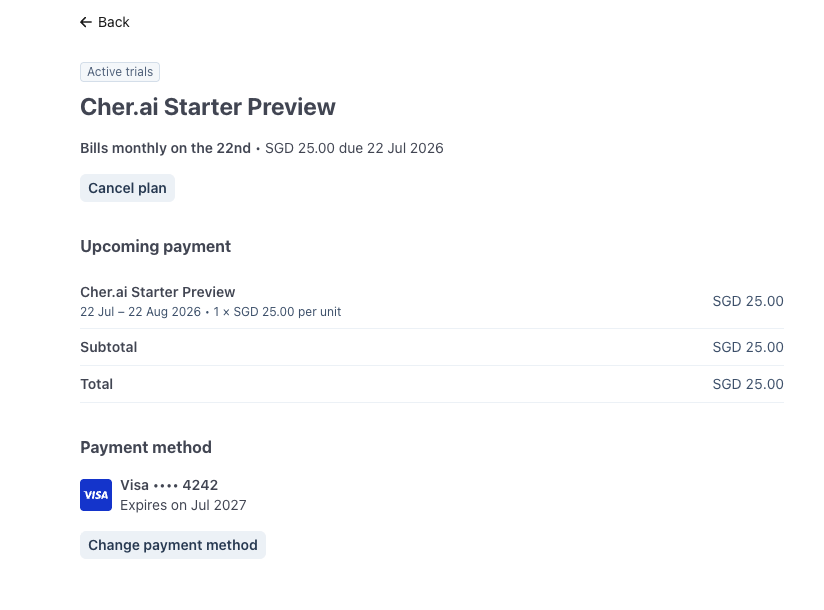
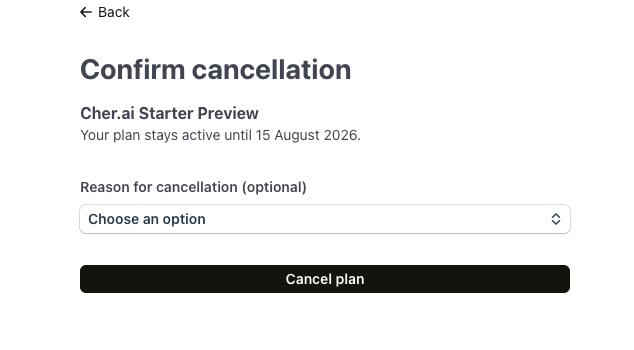
On the plan details page, click Cancel plan. Stripe will show the date your trial remains active until.
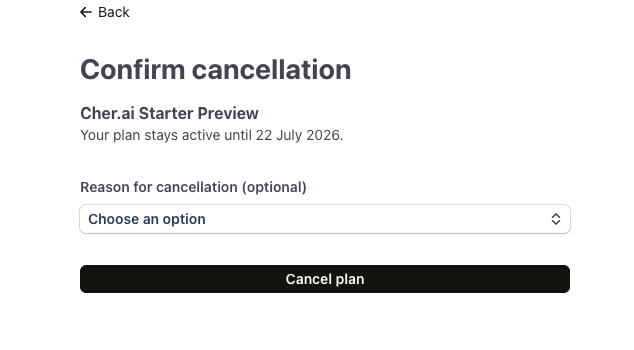
Confirm the trial cancellation
Choose a cancellation reason if you want to. This is optional. Click Cancel plan again to confirm.
Your trial stays active until the date shown on the Stripe page, but it will not renew into a paid subscription after that date.
If you are cancelling a paid plan
Use this path if your learner already has Starter Preview access. There is no long-term lock-in: cancelling stops the next renewal, and access remains active until the end of the current billing period shown in Stripe.
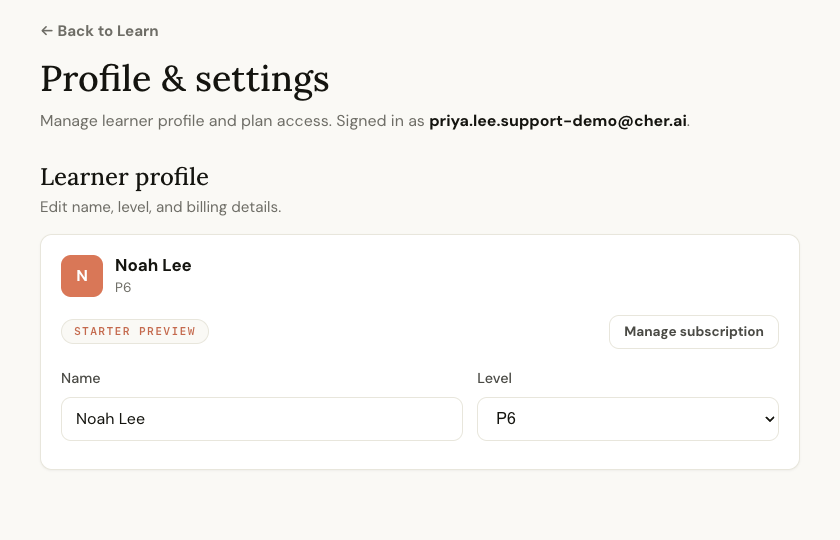
Click Manage subscription
On Profile & settings, find the learner whose paid plan you want to cancel. Click Manage subscription.
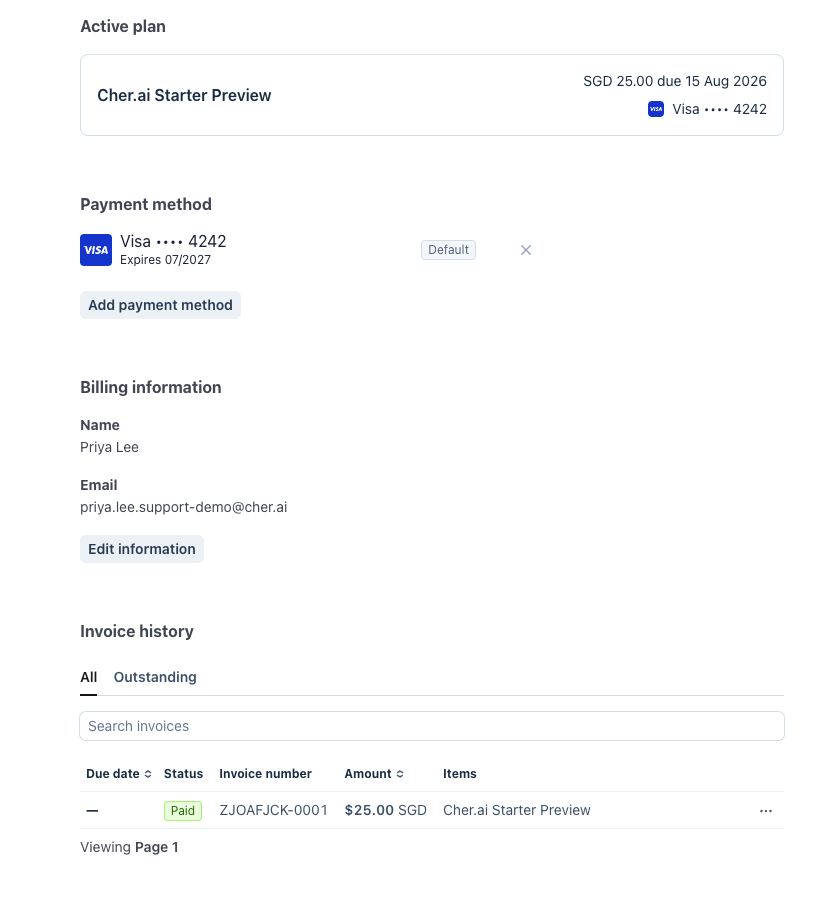
Select the active paid plan in Stripe
Stripe opens in a new billing portal page. Under Active plan, click the Cher.ai Starter Preview card.
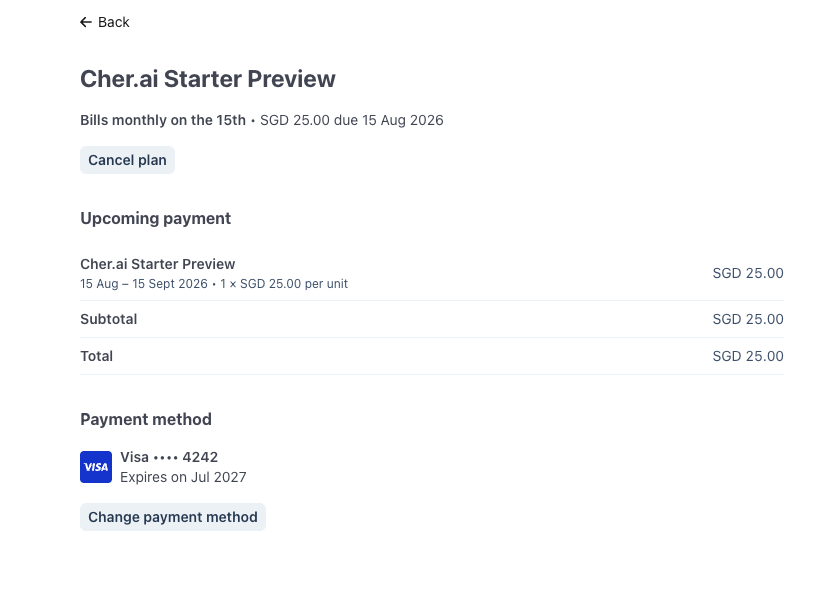
Choose Cancel plan
On the plan details page, click Cancel plan. Stripe will show the date your paid plan remains active until.
Confirm the paid plan cancellation
Choose a cancellation reason if you want to. This is optional. Click Cancel plan again to confirm.
Your paid plan stays active until the date shown on the Stripe page, then it will not renew.
Need help?
If you cannot access the Stripe portal, WhatsApp us at +65 8805 4212 with your account email and learner name.